Only run one flow instance at once

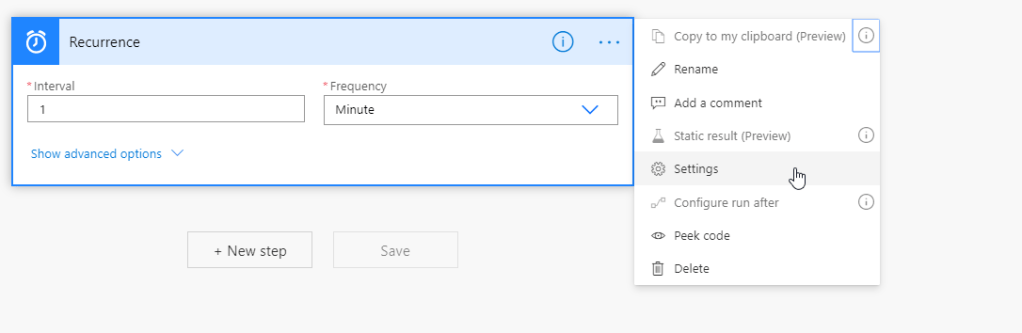
Sometimes it is desirable to only run one flow instance at a time. For example if you have a scheduled flow that are running at a set interval were you are processing some records, you normally do not want another flow instance to start running before you are done processing the first batch to avoid running the same records again. To avoid such scenario, you can enable concurrency control on the trigger. This is done by clicking on the three dots and selecting Settings

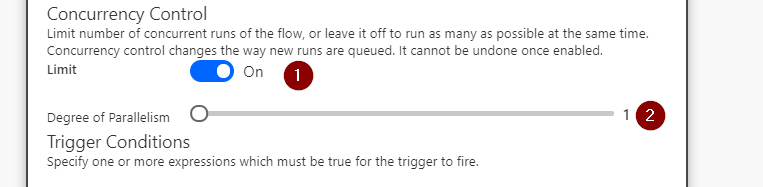
In the new dialog that opens, toggle concurrency control from Off to On and pull the slider down to 1.

Finish by pressing Done

This will ensure that only one instance of your flow are running at the same time.

FakeItEasy – Gotchas with builder pattern

My mocking library of choice is FakeItEasy. Earlier when I was creating test for my implementation of a method that called some methods on a builder, I didnt get the results I expected. My setup was a follows

public interface IBuilder
{
	IBuilder BuildPartOne();
	IBuilder BuildPartTwo();
	Assembled Build();
}

public class Builder : IBuilder
{
	public Assembled Build()
		=> new Assembled("I have been faked away");

	public IBuilder BuildPartOne()
	{
		return this;	
	}

	public IBuilder BuildPartTwo()
	{
		return this;
	}
}

public class Machine
{
	private IBuilder _builder;
	
	public Machine(IBuilder builder)
		=> _builder = builder;
	
	public Assembled BuildAllThings()
		=> _builder
				.BuildPartOne()
				.BuildPartTwo()
			.Build();
}

public class Assembled
{
	public string Message {get;}

	public Assembled(string message)
	{
		Message = message;
	}
}

I then had my arrange part of my test like this

var fakeBuilder = A.Fake<IBuilder>();
	A.CallTo(() => fakeBuilder.Build()).Returns(new Assembled("I was just built"));
	
	var machine = new Machine(fakeBuilder);
	
	var assembled = machine.BuildAllThings();

After this I expected that I would get my Assembled-object back with the property Message populated with my text “I was just built”, but instead I got and object with no value in the Message property. It took a while before I realized that I hadnt setup all the builder method calls, so they simply returned new faked IBuilder object, which in turn made the Build method return a faked Assembled object. The solution was simply to tell FakeItEasy to always return my faked Builder object when a method returned an IBuilder. When I added

A.CallTo(fakeBuilder).WithReturnType<IBuilder>().Returns(fakeBuilder);

to my arrange part my test worked as expected.

Send email from template via Javascript

Today we are going to send an email using an email template. I will use Typescript and assume that you have prior experience with this. In the client scripting SDK there is a method called Xrm.Utility.invokeProcessAction, but there are some bugs related to that method, (or I havent figured out how to call this correctly), which make it impossible to use for some actions. Instead we will use the Xrm.WebAPi.online.execute API to call the SendEmailFromTemplate action.

Find the correct parameters to use

First we need to find the correct parameters to use in the call. This can be found in the metadata-document, which is found on the url https://your_instance_name.api.crmX.dynamics.com/api/data/v9.1/$metadata or in the interface by clicking on the cog -> Advanced Settings -> Customizations -> Developer Resources, then copy the Service Root Url and append $metadata to the end. Before opening the metadata document I would advice you to installed some JSON extension to Chrome to get the data formatted. I like to use JSONView. When we open the metadata document we search for SendEmailFromTemplate to find something like this

<Action Name="SendEmailFromTemplate">
<Parameter Name="TemplateId" Type="Edm.Guid" Nullable="false"/>
<Parameter Name="Regarding" Type="mscrm.crmbaseentity" Nullable="false"/>
<Parameter Name="Target" Type="mscrm.crmbaseentity" Nullable="false"/>
<ReturnType Type="mscrm.email" Nullable="false"/>
</Action>

This tells us to call the action of name SendEmailParameter, we must supply it with three arguments, and expect a return type of mscrm.email. Non of the parameters are nullable, meaning that we can not omit any of them. The next step is to learn how to actually call the action.

Call the action from code

Start by opening Visual Studio code and create a new file called EmailService.ts. Open the terminal and write tsc –init to create an initial tsconfig.json file. We the start by defining our EmailService class and and empty method called sendEmailFromTemplate which takes to parameters, the template id and the form context object. How you aquire these to values is up to you, but I called this method from a button in the Ribbon. We are now left with the following code

class EmailService {
    public static sendEmailFromTemplate(templateId: string, formContext: any): void {
    }
}

Next up we will define some helper methods which will make it easier for us to call the actions. These methods are resuable to if you want to, you can extract them out to a utility class. In this example we keep all the code in our EmailService class.

// Wires the call to WebAPI. The docs for this can be fount
// in the link in the post.
private static callAction(actionName: string,
    ...params: Array<
        {
            key: string, // Parameter name
            value: any, // The value
            structuralProperty: number,
            typeName: string, // Type name
            isBoundParameter?: boolean // false if global action
        }>): PromiseLike<any> {
    const request: any = {};
    const metadata: any = { operationName: actionName, operationType: 0 };
    const parameterTypes: any = {};
    for (const param of params) {
        const key: string = param.key;
        request[param.key] = param.value;
        let parameterType: any = {};
        parameterType = {
            structuralProperty: param.structuralProperty,
            typeName: param.typeName
        };
        parameterTypes[key] = parameterType;
        if (param.isBoundParameter) {
            metadata.boundParameter = param.key;
        }
    }
    metadata.parameterTypes = parameterTypes;
    request.getMetadata = () => metadata;
    // Make the actual call to WebAPI
    return Xrm.WebApi.online.execute(request);
}
    // Removes the {} from the string. 
    //Cant use brackets in the calls to WebAPI
    private static removeCurlyBrackets(value: string): string {
        return value.replace(/{|}/gi, "");
    }

Our email that we are sending are from the owner of the Account record to the account.

private static createEmail(formContext: any): any {
    const owner = formContext.getAttribute("ownerid").getValue()![0];
    const accountId = formContext.data.entity.getEntityReference();
    const email: any = { "@odata.type": "Mirosoft.Dynamics.CRM.email" };
    email["regardingobjectid_account_email@odata.bind"] = 
        "/" + accountId.entityType + "s/" + accountId.id;
    const sender: any = {};
    sender["partyid_systemuser@odata.bind"] = 
        "/" + owner.entityType + "s(" + this.removeCurlyBrackets(owner.id) + ")";
    sender["participationtypemask"] = 1; // From
    const receiver: any = {};
    receiver["partyid_account@odata.bind"] = 
        "/" + accountId.entityType + "s(" + this.removeCurlyBrackets(accountId.id) + ")";
    receiver["participationtypemask"] = 2; // To
    email["email_activity_parties"] = [sender, receiver];
    return email;
}

Wrapping all the pieces together we are left with this content in the sendEmailFromTemplate method in our EmailService class.

const email = this.createEmail(formContext);
this.callAction("SendEmailFromTemplate",
    {
        key: "TemplateId",
        value: { guid: templateId },
        structuralProperty: 1,
        typeName: "Edm.Guid"
    },
    {
        key: "Target",
        value: email,
        structuralProperty: 5,
        typeName: "email"
    },
    {
        key: "Regarding",
        value: { entityType: "account", id: formContext.data.entity.getId() },
        structuralProperty: 5,
        typeName: "Edm.Guid"
    }
).then(console.log, (error: {
    code: string, message: string, innerror: { message: string, type: string, stacktrace: string }
}) => {
    const details = error?.innerror?.message + "\n" + error?.innerror?.stacktrace;
    Xrm.Navigation.openErrorDialog({
        details: details,
        message: error.message,
        errorCode: parseInt(error.code, undefined)
    });
});

If we write tsc in the terminal to compile the code to javascript and uploading it into our environment we can then call it like this

EmailService.sendEmailFromTemplate("our-template-guid-goes-here", formContext_goes_here);

I hope you learning something from this!.
Format input in Canvas App

Today there is really no great way to format the input of a text field in Canvas Apps. One solution to this shortcoming is to use two fields, and enter the text into an transparent field and format the text in another TextInput that lies below the transparent one.

In this example I will format a swedish cell phone number as we normally do here, which is AAA-BBB CC DD.

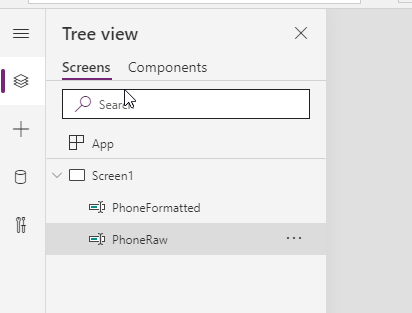
Start by creating a new Canvas App, in this example I used the Phone Layout. Start by dragging to TextInput-field to the canvas and rename them to PhoneRaw and PhoneFormatted.

As the default-value for PhoneFormatted, enter the following formula

Left(Concat(Filter(Split(PhoneRaw.Text, ""), Result in 12345678909), Result), 3) & "-" & Mid(Concat(Filter(Split(PhoneRaw.Text, ""), Result in 12345678909), Result), 4, 3) & " " & Mid(Concat(Filter(Split(PhoneRaw.Text, ""), Result in 12345678909), Result), 7, 2) & " " & Mid(Concat(Filter(Split(PhoneRaw.Text, ""), Result in 12345678909), Result), 9, 2)

There is a lot of repetion here, but as far as I know there is no other way to do this. We can now test this by entering some text into PhoneRaw, and see that it will filter away anything that isnt a number and also that it will format according to the specified format.

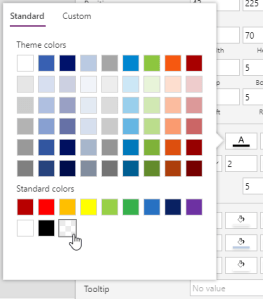
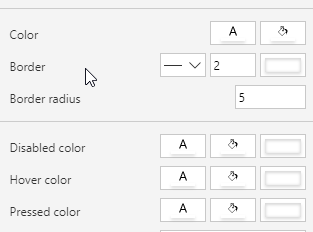
We now have a functionally formatting. The next step is to make the RawPhone field transparent and put in on top of phone formatted. Select PhoneRaw, and under properties scroll down to Color and make all attributes transparent.

When you are done the Color settings should look like below

Now the PhoneRaw field is transparent and can be hard to locate on the canvas, but if you select it from the tree view there shouldnt be any problems.

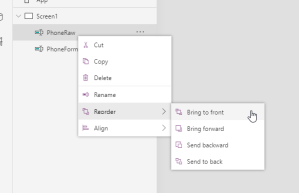
Grab the invisible element and drag in on top of PhoneFormatted. If the formatting doesnt seem to work, one issue I had were that the wrong element were put in front of the other. To solve this, right click on RawPhone, select Reorder and chose Bring to Front.

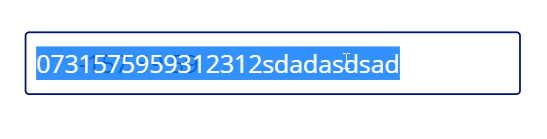
When you have done this, try again and you should now have working formatting. Another downside of this solution is if the user tries to select the text in the textbox, because it is the unformatted text that are in front and will be selected.

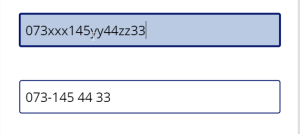
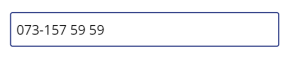
Nicely formatted text
Not so nice when selected

Happy formatting!

Where condition and Dynamics 365 LINQ Provider

Today I got a pull request to review and it had some code in it that I thought would not work. The code in questions looked similar to

var allAccountsForPrimaryContact = 
			proxy
			.CreateQuery<Account>()
			.Where(t => t.PrimaryContactId == contactEntityRef)
			.ToList();

This made me write a comment that it would perform an invalid comparison and never return any results at all, but to my surprise when I tested the code it actually returned the expected results.

This made me dig a little bit deeper, and I went on to decompile the Microsoft.Xrm.Sdk assembly, and I look at the code for the queryprovider. In there I saw the code below which made me realize that I can actually use objects directly in Where condtions in a couple of cases, namely when the object is an EntityReference, Money, OptionSet or an value of type Enum.

private object TranslateExpressionToConditionValue(Expression exp, params ParameterExpression[] parameters)
{
	object obj = TranslateExpressionToValue(exp, parameters);
	EntityReference entityReference = obj as EntityReference;
	OptionSetValue optionSetValue = obj as OptionSetValue;
	Money money = obj as Money;
	if (entityReference != null)
	{
		obj = entityReference.Id;
	}
	else if (money != null)
	{
		obj = money.Value;
	}
	else if (optionSetValue != null)
	{
		obj = optionSetValue.Value;
	}
	else if (obj != null && obj.GetType().IsEnum)
	{
		obj = (int)obj;
	}
	return obj;
}

Common Data Service & .NET Core

A couple of weeks ago a new Nuget library were released in an early alpha version. This library is an official library from Microsoft allowing us to interact with the Common Data Service in a almost identical way as we are used to, but now from .NET core. The big deal here is that it allows us to build cross platform applications using .NET core that can run on Windows, Linux, OSX and more.

If you are familiar with the Microsoft.CrmSdk.XrmTooling.CoreAssembly you will feel right at home when starting using the library for .NET core. For simplicity I will use LINQPad for this example, but the steps would be similar if you are using Visual Studio to create a console application.

Start with adding the Microsoft.Powerplatform.Cds.Client package to your application. Remember to enable pre-releases, otherwise you will not see the package. After installation we will create a new instance of the CdsServiceClient using a ClientId and ClientSecret. When the instance has been constructed we can interact with it as we are used to with the CrmServiceClient.

var client = new CdsServiceClient(cred.InstanceUri, cred.ClientId, cred.ClientSecret, true, null);
	
var whoAmI = (WhoAmIResponse)client.Execute(new WhoAmIRequest());
	
Console.WriteLine(whoAmI.UserId);

When the program executes it prints

e1bc9319-9c04-ea11-a811-000d3ab46b12

which proves that we have successfully connected to Common Data Service using the new library targeting .NET core.

Power Automate – 400 Bad Request

or How I learned to side scroll

Today I had a requirement to create a Flow in Power Automate to change owner on accounts that had not been active for a certain amount of time. I thought that did sounded simple so I started with a confidence that this would be a 30min fix. As so many times before I were completley wrong.

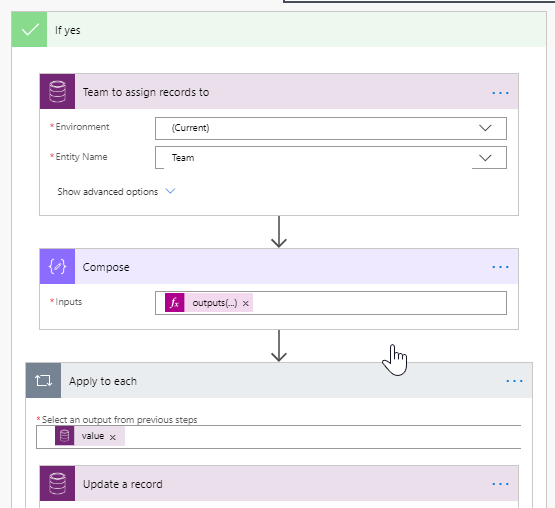
But back to my flow, it looked similar to the one below where I listed all accounts that meet the requested conditions, and for each of the account I would simply set the owner to a common team that could be accessed by a number of people to make sure that this account werent forgotten.

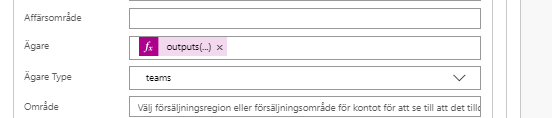
What we are doing is that we are selecting the team to move the accounts to, store the Id using Compose to avoid the need to initialize any variables, and then for each account that we selected earlier in the flow (not showing here), we simply update the account using the Id from the Compose step.

If •yes 
Team to assign records to 
Compose 
Apply to each 
record

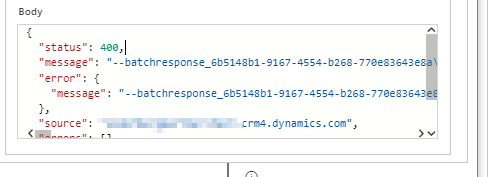
This seems simple enough, but this time I received an http 400 error, saying Bad Request with the following Body. (this is were I should have realized that I could side scroll)

I struggled with this error message for a while before I went back to what I know best, how to code. Using LinqPad I sent a simple Update request with the same values as in my flow, but this time I got back a response that I was familiar with.

client.Update(
 new Entity("account")
 {
	Id = recordId,
	["ownerid"] = new EntityReference("team", teamId)
 });

FaultException`1: Principal team (Id=7ac39076-415d-ea11-a811-000d3ab46b12, type=9, teamType=0, privilegeCount=0), is missing prvReadAccount privilege (Id=886b280c-6396-4d56-a0a3-2c1b0a50ceb0) on OTC=1071 for entity ‘customeraddress’. context.Caller=e1bc9319-9c04-ea11-a811-000d3ab46b12

Finally I realized that my team that I had created for this requirement did not have enough privilegies to perform the operation. After assigning the team to the appropriate roles my Flow succeeded without any error.

To late I realized that the same error message were present in the body of my Update action in my flow, if only had I scrolled to the right!